
If you aren’t aware, Super Golf Battle is a brand new indie game (Trailer) that is quickly rising through the ranks. It’s a multiplayer game where everyone plays golf simultaneously, using power-ups to speed ahead and whack other players with golf clubs. Did I mention shooting players to stop them from hitting the ball?
As with most (new) games, this was not released on macOS, and is limited to purely Windows, with Proton doing the heavy lifting on Linux. So if you’re like me and wanted to play it, voice chat and all, here’s a quick guide on how to install it.
Note: This guide is for macOS 26+ Tahoe, and based on user reports, may not work on earlier versions of macOS.
Installation
This video by MacProTips is actually good for most of the installation process, and I will be referring to this constantly, using timestamped links.
- Watch the video up to the 4:14 mark. You’ll need it to install the following:
Sikarugir Creator
-
Now that you’ve installed Homebrew and used it to install Sikarugir, launch Sikarugir Creator. For me on macOS 26 Tahoe, it looks different to the one in the video, but just search for Sikarugir Creator in your Applications. Open the app.
-
Now that you’ve opened it, Sikarugir should look a little bit like this. It’s a newer version of the one that appears in the video, but functionally operates the same. Note that there might be a Download Template button under the leftmost item, click that
Downloadbutton.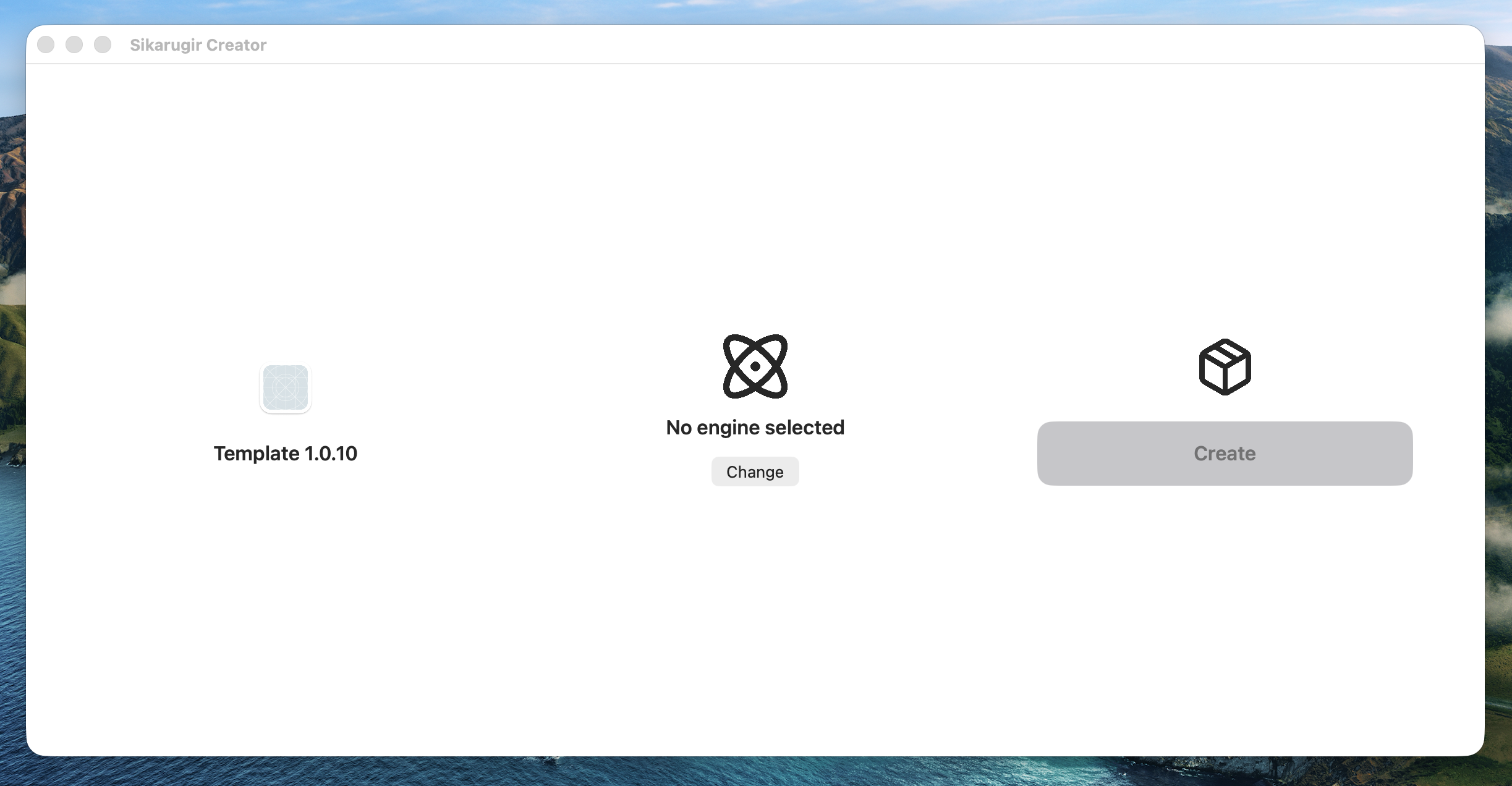
-
Once you’ve downloaded the template and your screen matches the above, select an engine by pressing
Change. For Super Battle Golf on the MacBook Pro M4 (base model), theWS12WineSikarugir10.0_4seems to work well. Select that Engine.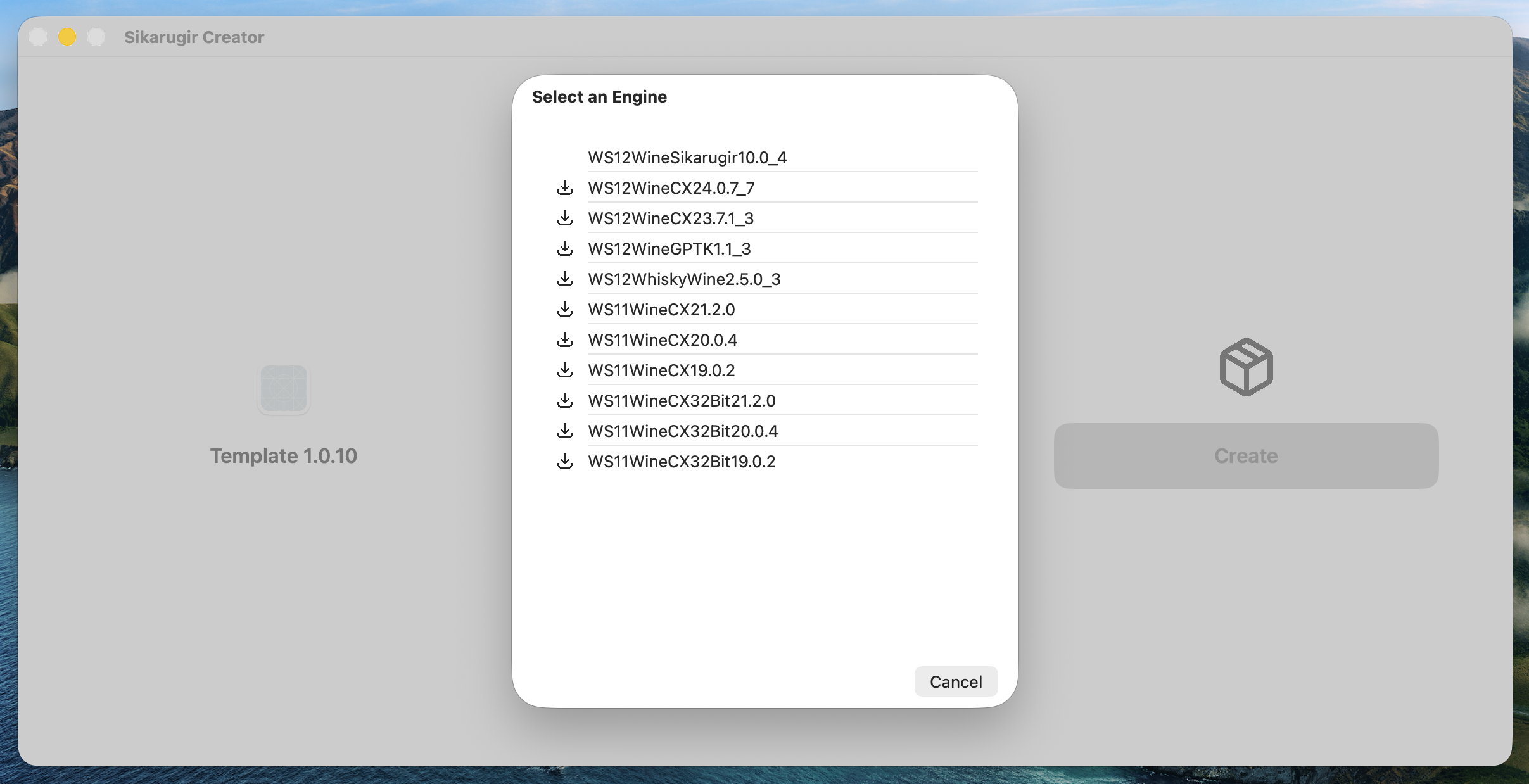
-
Click
Create, and set a name. This will be the name of the shortcut that will be seen in your dock, linking you to the Windows-emulated version of Steam. You could name it Steam-S so that you don’t get confused with macOS’ official Steam package. ClickSave.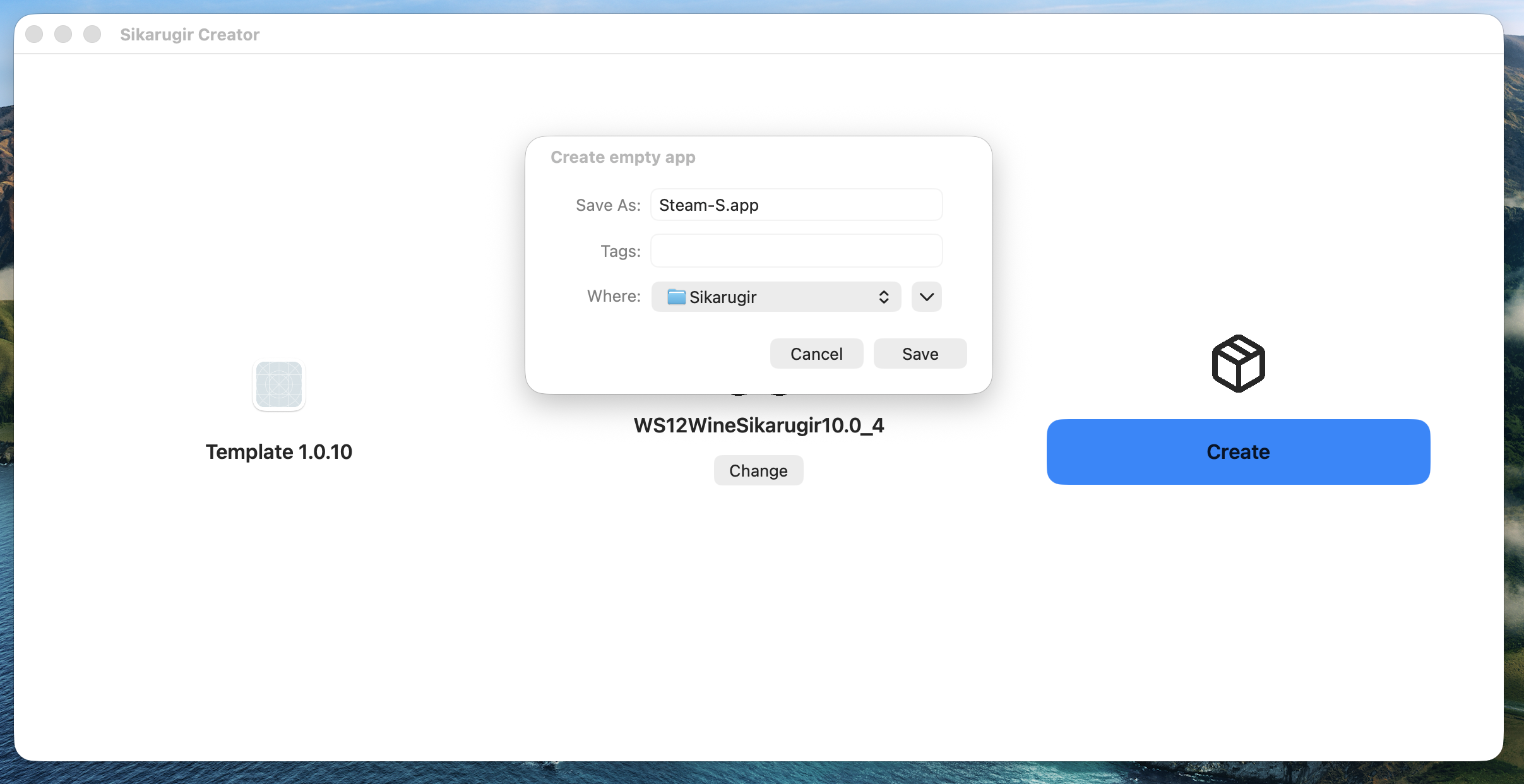
-
Back to the video. Watch from 5:02 until 7:35 and follow it as it will lead you to the
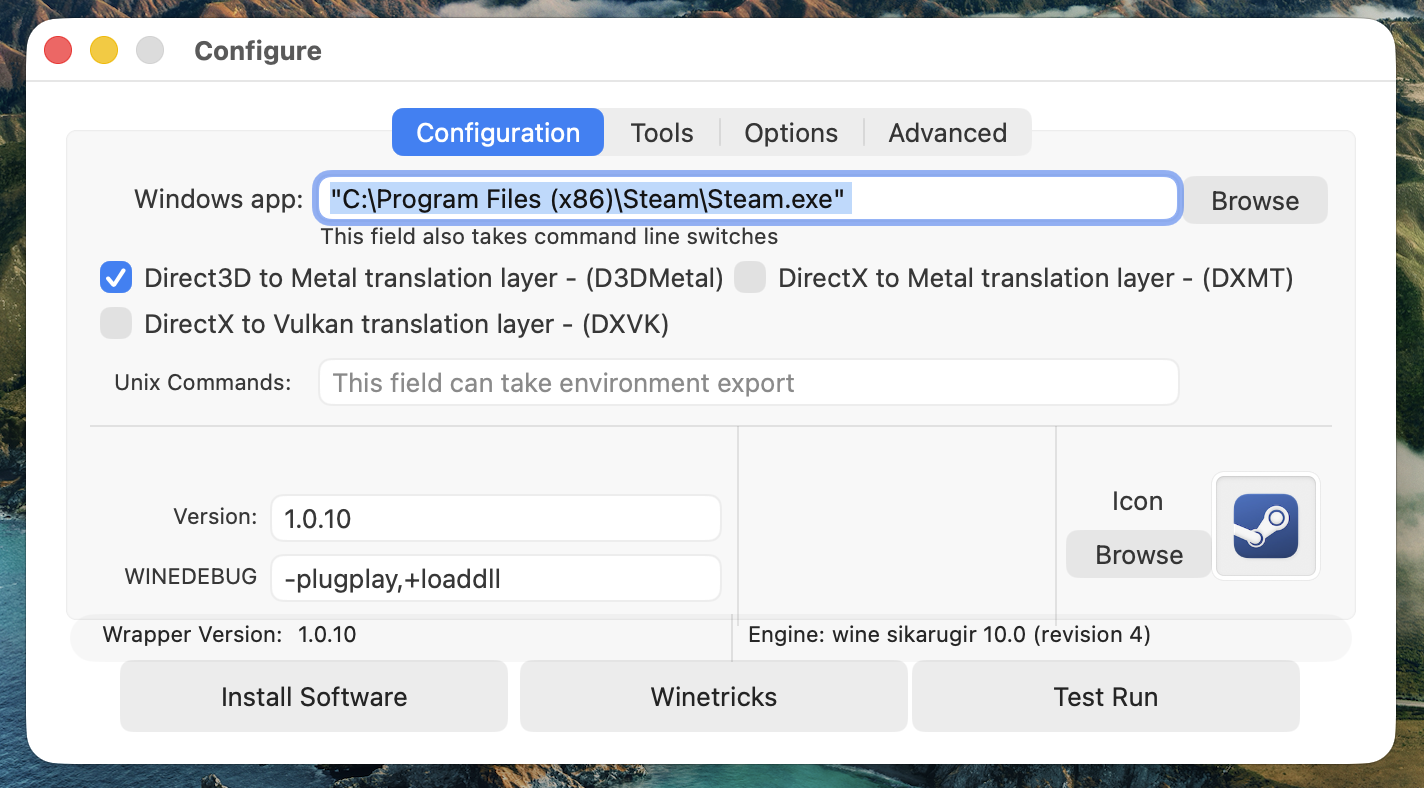
Configurescreen. If you can’t find the Steam-S shortcut, open Finder, then navigate toHome (name of your user with the Home icon), Applications > Sikarugir > Steam-S, or whatever you named the shortcut in the previous step. Double click the icon to launch the configurator.
If you closed the configurator, Right click the Steam-S icon, Show Package Contents and look for the
Configureapp within it.
Configure
-
Follow all the steps exactly in the video until 7:35. You should have the Steam logo edited, as well as Steam installed via WineTricks.
-
Turn on D3DMetal. Close the app by pressing the Red cancel button.
-
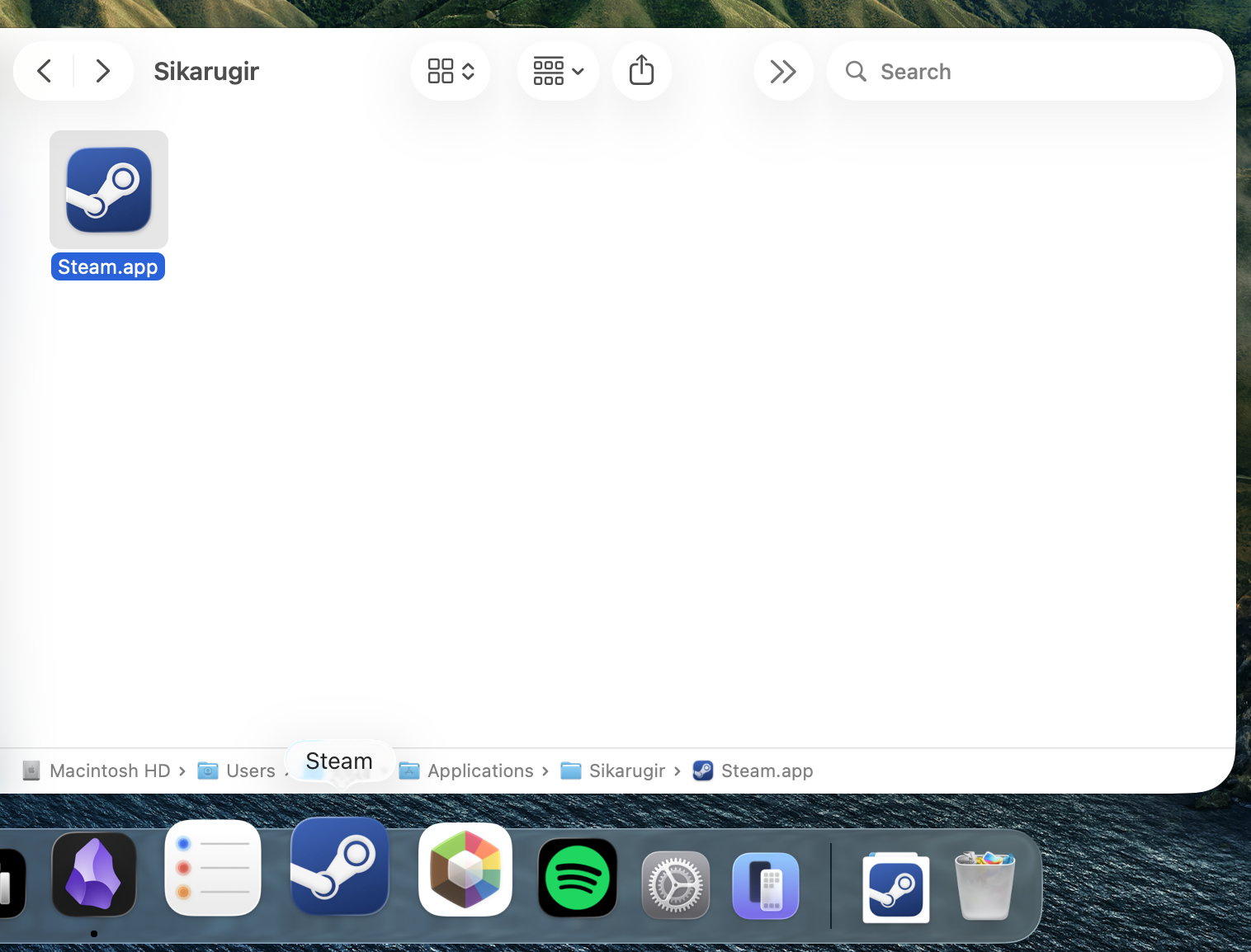
Finally, drag the icon from your Finder to your Dock or anywhere that is easy access. Login to Steam and enjoy!
FAQ & TLDR
-
TLDR pls Follow the video by MacProTips, and ensure that D3DMetal is on.
-
my keyboard is not working….. If your keyboard doesn’t work in Super Battle Golf, click
Cmd + Tab(Command and Tab) to go to another app, and press it again to return to Super Battle Golf. -
when was this made?? what does it work on?? I’m using it on macOS 26.3 Tahoe. Works as of the 1st of March, 2026. Reports from other users have indicated that it only works on macOS 26+ Tahoe, and not macOS Sequoia or earlier due to bugs with Unity (Updated: 2026-03-04).
-
will i get banned?? Hopefully not, I haven’t yet!